
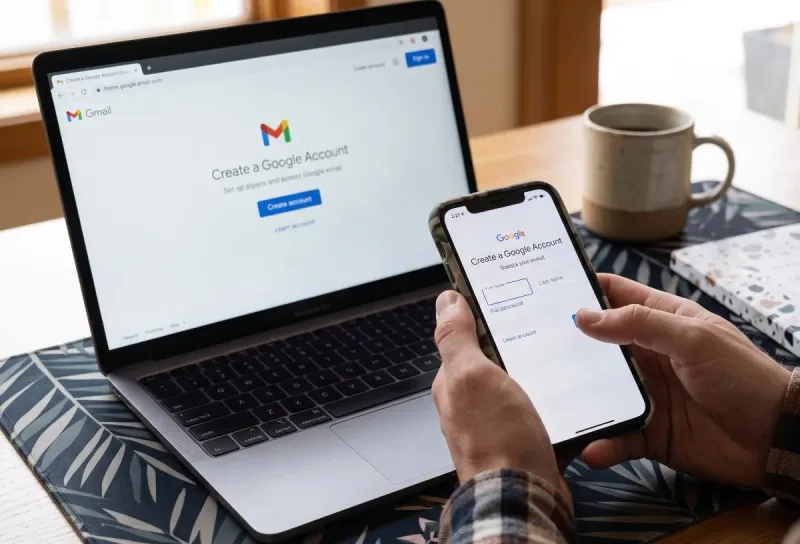
Whether you are stepping into the digital world for the first time, separating your work life from your weekend plans, or launching a freelance business, having a reliable email service is non-negotiable. Among all the available platforms, Google’s Gmail remains the undisputed king of webmail.
With over a billion active users worldwide, a Gmail address does far more than just send and receive letters. It serves as your universal passport to the broader Google ecosystem: Google Drive, YouTube, Google Docs, Meet, Android devices, and thousands of third-party websites that allow one-click logins.
If you have been wondering how to create a new gmail account, you have landed in the right place. In this detailed, practical guide, we will walk through the exact setup process across desktop and mobile devices, explore essential security configurations, address common roadblocks, and show you how to tailor your brand-new inbox for peak productivity.
Why Choose Gmail?
Before diving into the mechanics of setting up your account, it helps to understand why Gmail is worth the five minutes it takes to configure.
-
Massive Cloud Storage: Every free Google account comes with 15 GB of cloud storage shared across Gmail, Google Drive, and Google Photos.
-
Top-Tier Spam Filtering: Google’s spam filters analyze billions of signals daily, keeping unwanted promotions, malicious links, and phishing attempts out of your primary inbox.
-
Seamless Cross-Device Synchronization: Start drafting an email on your desktop computer at work and finish it on your smartphone during your commute without missing a beat.
-
Intuitive Search Power: Built on Google’s foundational search architecture, locating a five-year-old receipt, PDF attachment, or flight confirmation takes mere seconds.
-
Robust Security Infrastructure: With cutting-edge two-factor authentication, suspicious login detection, and automatic phishing alerts, your data is shielded by industry-leading security practices.
Preparation: What You Need Before Starting
Setting up an account is simple, but gathering a few essential items beforehand makes the process effortless:
-
A Reliable Internet Connection: A standard Wi-Fi or cellular network connection.
-
Basic Personal Information: Your first and last name, date of birth, and gender.
-
A Desired Username: Think of two or three variations in advance, as popular usernames are often already claimed.
-
A Working Mobile Phone Number: Google frequently asks for an SMS verification code to confirm you are a real person and prevent automated bot signups.
-
An Existing Recovery Email Address (Optional): An alternate email from another provider (like Outlook, Yahoo, or an old work email) can help you recover your account if you forget your password.
How to Create a New Gmail Account on a Desktop Browser (PC or Mac)
Setting up your account from a desktop computer gives you the widest view of settings and options. Follow these sequential steps:
Step 1: Head to the Official Sign-Up Page
Open your web browser (Google Chrome, Mozilla Firefox, Microsoft Edge, or Safari) and go to accounts.google.com or navigate straight to gmail.com.
On the main landing page, locate and click the prominent Create account button. You will see a dropdown asking how you intend to use the account:
-
For my personal use
-
For my child
-
For work or my business
Select For my personal use unless you are creating a workspace specifically designed for an enterprise or managed minor.
Step 2: Enter Your Name and Basic Information
Google will prompt you to enter your First name and Last name. While the last name field is technically optional, using your authentic details is recommended if you plan to use this email for professional correspondence, banking, or job applications. Click Next when finished.
On the next screen, enter your Date of Birth (Month, Day, Year) and select your Gender from the dropdown menu (Female, Male, Rather not say, or Custom). Google uses your birthdate to verify age requirements for standard accounts. Click Next.
Step 3: Choose Your Unique Username
Now comes the creative part: selecting your email address handle (the part that appears before @gmail.com).
Google will often suggest two or three auto-generated usernames based on your name. You can either:
-
Click one of the suggestions if it looks clean and readable.
-
Select Create your own Gmail address to type in a custom name.
Step 4: Create a Strong, Memorable Password
A compromised email puts your entire online identity at risk. Google requires passwords to be at least 8 characters long, but a truly secure password should be much stronger.
-
Combine uppercase letters, lowercase letters, numbers, and symbols (
!,@,#,$,%). -
Avoid obvious patterns, pet names, birthdays, or common dictionary words.
-
Consider using a passphrase—a series of four or five unrelated words strung together (e.g.,
Bicycle$Maple47River!).
Type your chosen password in the Password field, re-enter it identically in the Confirm field, and click Next.
Step 5: Phone and Recovery Email Verification
To ensure genuine human registration and keep spam networks at bay, Google may ask you to confirm your phone number:
-
Select your country code from the dropdown flag menu.
-
Enter your active mobile phone number.
-
Click Next.
-
Check your phone for an incoming text message containing a six-digit verification code starting with a "G-" (e.g.,
G-123456). -
Enter the numeric code into the verification box on your screen and click Verify.
Following this, you will be given the option to add a Recovery email address. While you can skip this step, providing an alternate email address is strongly recommended. If you ever forget your password or get locked out while traveling, this recovery address will be your lifeline.
Step 6: Decide on Extra Phone Features
Google will ask if you want to get more utility from your phone number across other services (such as receiving video calls via Google Meet and making Google ads more relevant).
You can safely click Yes, I'm in or choose Skip—skipping this does not affect your email functionality at all.
Step 7: Review and Agree to Terms of Service
The final step displays Google’s Privacy and Terms. Scroll through to review how your information is processed, how cookies operate, and what rules govern your account.
You can also click More options to tweak personalized settings, such as pausing your YouTube watch history or turning off personalized search ads.
When satisfied, click I agree. After a brief loading screen, your browser will redirect you directly into your brand-new, clean Gmail inbox.
How to Create a New Gmail Account on a Mobile Device
Setting up an account via your smartphone or tablet is just as straightforward, whether you use iOS or Android.
On an Android Device
Because Android is powered by Google, your device is built around a Google account:
-
Open your device’s Settings menu.
-
Scroll down and tap Accounts (or Passwords & Accounts / Google, depending on your device brand).
-
Tap Add account.
-
Select Google from the list of options.
-
Confirm your device lock screen (fingerprint, pattern, or PIN).
-
Tap Create account at the bottom-left and select For my personal use.
-
Follow the on-screen prompts for your name, birthdate, desired email address, and secure password.
-
Verify via SMS if prompted, accept the terms, and your new account will automatically sync with your device's Gmail app.
On an iPhone or iPad (iOS)
-
Download the official Gmail app from the Apple App Store if you don't already have it.
-
Open the app and tap Sign in.
-
Tap Add another account > Google.
-
Tap Continue when prompted to allow Google to sign in.
-
Select Create account > For my personal use.
-
Complete the personal information and username steps.
-
Accept the terms to finalize setup. Your inbox will populate immediately within the app.
Essential Post-Creation Security Checklist
Getting your inbox open is only half the journey. Spending three minutes locking down your account now saves hours of headaches later.
1. Turn on 2-Step Verification (2FA)
Two-Factor Authentication is the single most effective defense against unauthorized access. Even if someone manages to guess or intercept your password, they cannot enter without the second physical factor:
-
Click your profile picture in the top-right corner of Gmail and select Manage your Google Account.
-
Navigate to the Security tab on the left sidebar.
-
Under "How you sign in to Google," select 2-Step Verification.
-
Click Get Started and follow the prompts to link your mobile phone, Google Authenticator app, or hardware security key.
2. Download Offline Backup Codes
What happens if you travel internationally, drop your phone in water, and cannot receive SMS verification codes? Google provides emergency backup codes:
-
In the 2-Step Verification menu, look for Backup codes.
-
Generate 10 single-use codes.
-
Print them out or store them inside an encrypted password manager. Keep them away from plain text files.
3. Conduct a Quick Security Checkup
Google provides an automated health dashboard for your profile:
-
Go to the Security tab.
-
Look for the Security Checkup card at the top.
-
Review recognized devices, recent sign-in activity, and connected third-party apps regularly.
Customizing Your New Inbox for Productivity
An empty inbox is a blank canvas. Here are three quick configurations to make it work efficiently for your daily life:
-
Extend "Undo Send" Time: By default, Gmail gives you a mere 5 seconds to recall an email sent by accident. Go to Settings (Gear Icon) > See all settings > General > Undo Send. Change the cancellation period to 30 seconds. This gives you half a minute to stop an email with a typo or missing attachment.
-
Set a Professional Email Signature: In that same General tab, scroll down to Signature. Click Create new, type your name, job title, phone number, and social links, then set it to apply automatically to all new messages.
-
Organize with Labels and Filters: Unlike standard folders that force an email to live in only one place, Gmail uses Labels. You can apply multiple labels to a single message (e.g.,
Invoices,Travel,Urgent), keeping your communications neatly organized without cluttering your view.
Troubleshooting Common Setup Issues
| Problem | Cause | Practical Solution |
| "Username is already taken" | Another user already owns that exact handle. | Insert periods between names, append your city or profession, or pick an alternate combination. |
| "This phone number has been used too many times" | Google limits how many accounts can be verified with one number to combat spam. | Use a different family member's phone number, a landline with voice verification, or wait a few weeks. |
| "Could not create account" browser error | Corrupted cache or conflict with aggressive ad-block extensions. | Open a Private / Incognito window, disable script blockers temporarily, or switch to a different browser. |
| Verification SMS not arriving | Network latency or carrier SMS blocking filters. | Click Call me instead to receive the code via automated voice call, or restart your mobile device. |
Frequently Asked Questions
Can I create multiple Gmail accounts?
Yes. Google allows individuals to own and manage multiple accounts. You can create separate profiles for work, side projects, personal communication, and spam management, switching between them with a single click.
Is creating a Gmail account free?
Yes, creating a standard personal Gmail account is 100% free and includes 15 GB of cloud storage across Google services. Paid tiers (Google Workspace) are only required if you want a custom domain (e.g., you@yourbusiness.com) and enterprise management controls.
Can I change my Gmail address after creating it?
No. Once a @gmail.com username is registered, it cannot be renamed. If you are unhappy with your chosen address, you will need to create a new one. However, you can forward incoming mail from your old address to your new one automatically so you never miss a message.
What is the minimum age requirement for a Gmail account?
In the United States and many other countries, the minimum age to manage your own standard Google account is 13 years old. For younger users, parents can set up and supervise an account through Google’s Family Link service.
Summary
Learning how to create a new gmail account takes only a handful of minutes, but it opens the door to an entire ecosystem of modern communication, productivity, and cloud storage tools. By choosing a clear username, establishing rock-solid security protocols like two-factor authentication, and configuring your inbox preferences early, you set yourself up for a clean, secure, and stress-free digital experience.