
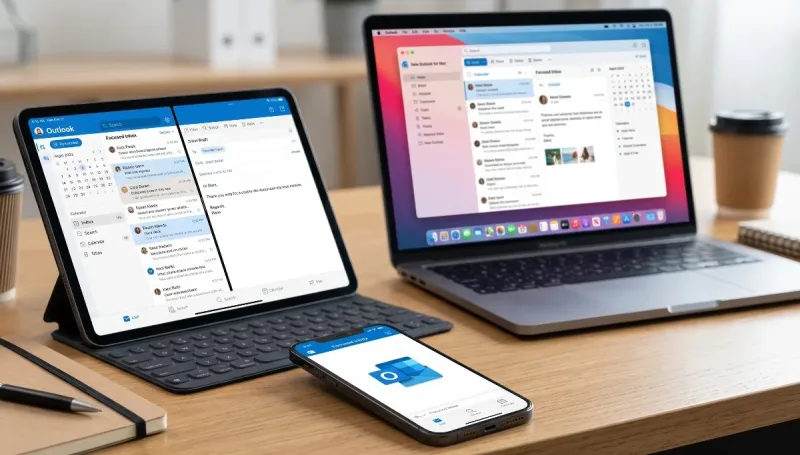
For years, running Microsoft software on Apple hardware felt like a reluctant compromise. Mac power users carried vivid memories of clunky ports, sluggish interfaces, and software suites that seemed designed to make macOS users long for a Windows machine. On iPhones and iPads, early versions of mobile email managers rarely felt at home alongside sleek iOS animations.
Times have clearly changed.
Microsoft has quietly turned its attention toward perfecting its software across the Apple ecosystem. Whether you run a MacBook Pro for work, juggle client communications on an iPad Air, or reply to emails on the fly with your iPhone, Microsoft’s presence in the App Store has never been stronger.
In this deep-dive Microsoft Outlook apple apps review, we examine how Outlook performs across iOS, iPadOS, and macOS. Does it beat Apple’s native Mail and Calendar suite? Is it worth switching if you live entirely inside the Apple walled garden? Let’s break it down device by device, feature by feature.
1. Outlook for iPhone (iOS): A Pocket Command Center
When Microsoft acquired the email app Acompli years ago, it laid the foundation for what is arguably one of the most reliable mobile productivity tools on iOS. Rather than trying to cram decades of legacy desktop Outlook into a phone screen, the iOS team built a focused, intuitive, gesture-driven client.
Also read: Snapchat Apple Apps Review
The Focused Inbox
The core philosophy of Outlook on the iPhone revolves around cutting down cognitive load. The Focused Inbox automatically splits your mail into two primary tabs: Focused and Other.
Unlike generic spam filters, this system learns your patterns over time. Automated receipts, newsletters, marketing promos, and social notifications slip into the Other tab, while genuine messages from real people land front and center. For professionals wading through hundreds of daily messages, this feature alone keeps notification anxiety manageable.
Calendar and Scheduling on the Go
Apple Mail forces you to bounce back and forth between two separate apps: Mail and Calendar. Outlook folds both into a single bottom navigation bar.
When someone asks, “Are you free for lunch on Thursday?”, you do not need to leave the email draft. With two taps, you can insert your real-time calendar availability directly into your response body. It generates neat, clickable appointment blocks for the recipient. If an invite arrives in your inbox, accepting it updates your integrated calendar without pulling you away from triage mode.
Swipe Customization & Quick Actions
Outlook for iOS understands the muscle memory of modern smartphone users:
-
Customizable Swipes: You can configure left and right swipe gestures for snoozing, archiving, deleting, flagging, or marking unread.
-
Smart Search: Powered by Microsoft Graph, the search tab surfaces top contacts, flight itineraries, upcoming package deliveries, and recent file attachments before you even type a single letter.
-
Widgets & Lock Screen Glanceability: Outlook offers customizable iOS widgets for your home screen and lock screen, letting you view upcoming meetings and unread counts without unlocking your device.
2. Outlook for iPad (iPadOS): Multitasking Power Unleashed
The iPad has always straddled the line between a consumption slab and a full-fledged workstation. Where Apple’s default Mail app often feels like an enlarged iPhone app with excessive whitespace, Outlook takes advantage of the iPad's spacious display.
Split-View and Multi-Window Support
Outlook on iPadOS supports Apple’s multitasking features smoothly:
-
Side-by-Side Drafting: You can pop out an email composer into its own window while keeping your calendar open side by side.
-
Drag-and-Drop: Pull attachments directly from Apple Files, Photos, or OneDrive and drop them straight into a pending message draft.
-
Keyboard Navigation: If you pair an iPad with a Magic Keyboard, Outlook supports desktop-style keyboard shortcuts (
Cmd + Nfor new email,Cmd + Rto reply, and arrow navigation across message lists), turning the tablet into a nimble travel laptop.
3. Outlook for Mac (macOS): A Tale of Native Polish
Outlook on the Mac has undergone the most radical evolution. Historically, Outlook for Mac was a massive, resource-heavy corporate utility that felt completely alien in macOS.
The modern "New Outlook for Mac" is an entirely different beast. Built from the ground up to feel native to macOS, it aligns with Apple’s design language—featuring translucent sidebars, clean typography, responsive trackpad gestures, and fast local indexing. It is also available completely free in the Mac App Store, requiring no active Microsoft 365 subscription for basic email and calendar functionality.
| Feature / Metric | Microsoft Outlook for Mac | Apple Mail (macOS Native) |
| Price | Free (App Store) | Included with macOS |
| Multi-Platform Sync | Windows, Mac, iOS, Android, Web | Apple Ecosystem Only |
| Integrated Calendar | Yes (Built-in sidecar panel) | Separate App (Apple Calendar) |
| Email Triage / Filtering | Focused Inbox, Rules, Snooze | Smart Mailboxes, Basic Rules |
| Corporate Exchange Integration | Best-in-Class (Native Graph/M365) | Good, but lacks advanced categorization |
| Snooze & Scheduled Send | Native & Instant | Supported in recent macOS versions |
| System Resource Footprint | Moderate | Very Low / Battery Optimized |
Profiles and Work-Life Separation
A major highlight of Outlook for Mac is Profiles. If you use Outlook for both corporate work and personal email (Gmail, iCloud, Yahoo, IMAP), you can link them to macOS Focus Filters.
During work hours, Outlook can hide personal accounts and silence their notifications. Once your evening begins, your work profile mutes automatically, ensuring you aren't interrupted by company threads over dinner.
Meeting Intelligence & Mini Calendar
In the Mac version, a collapsible right-hand panel gives you an instant snapshot of your daily schedule without opening a new window. If you spend half your day in Microsoft Teams, Zoom, or Google Meet, Outlook automatically recognizes the conference links and places a one-click Join button right in your agenda bar.
4. Key Strengths: Where Outlook Outshines Native Apple Apps
Conducting an authentic Microsoft Outlook apple apps review requires looking at real-world friction. Why would an iPhone or Mac owner install a Microsoft app over what comes pre-installed in the box?
1. Unified Ecosystem Across Conflicting Devices
Very few professionals live in an exclusively pristine Apple bubble. You might carry an iPhone in your pocket, use an iPad for evening reading, but sit in front of a Windows 11 enterprise tower at your corporate office.
Apple Mail offers zero presence on Windows or Android. If you rely on Apple Mail’s ecosystem, your tags, flags, and drafts fail to sync cleanly to non-Apple hardware. Outlook provides seamless parity: read an email on your PC at 4:55 PM, and your iPhone reflects the exact same read state, flagged folder, and snooze alarm at 5:02 PM.
2. File Attachment Handling
Apple Mail still struggles with how it visually renders attachments, often embedding multi-page PDFs or high-resolution images as massive inline previews right in the text body.
Outlook handles files with clean precision. Attachments remain docked as tidy preview chips at the top or bottom of the message. Furthermore, Outlook directly links with major cloud providers:
-
Microsoft OneDrive
-
Google Drive
-
Dropbox
-
Box
You can attach cloud-hosted files without downloading them locally to your iPhone or Mac first.
3. Corporate Security & IT Compliance
If your organization runs on Microsoft 365, Outlook for Apple platforms is practically mandatory. It natively honors:
-
Information Rights Management (IRM) and message encryption.
-
Sensitivity tags (e.g., Confidential, Internal Only).
-
Microsoft Intune Mobile Application Management (MAM), which allows companies to protect company data without taking over your entire personal phone.
5. The Rough Edges: Where Outlook Still Struggles on Apple
No piece of software is without flaws, and Outlook has several clear trade-offs when operating on Apple's turf:
Battery and Memory Footprint
Apple designs its native apps (Mail, Calendar, Reminders) to sip power by leveraging low-level macOS and iOS private frameworks. Outlook, while vastly improved, is inherently heavier. On older MacBooks or iPhones with degraded batteries, leaving Outlook running in the background with multiple active Exchange accounts can lead to higher battery consumption.
Privacy and Data Routing
To deliver features like background push notifications, Focused Inbox sorting, and cross-platform snoozing on non-Exchange accounts (like Gmail or Yahoo), Microsoft temporarily syncs credentials and mail through the Microsoft Cloud. While enterprise-grade security guards these servers, privacy purists who prefer local-only on-device IMAP processing often favor Apple Mail.
Occasional Sync Hiccups with Apple Calendars
While Outlook handles Microsoft Exchange and Google Workspace calendars with near perfection, its synchronization with native iCloud Calendars can occasionally lag. Users who share complex iCloud family calendars might encounter delayed sync times or missing invite responses compared to the native Apple Calendar app.
6. The Verdict: Should You Install Outlook on Your Apple Devices?
The verdict of this Microsoft Outlook apple apps review comes down to how your digital life is structured.
You should stick with Apple Mail & Calendar if:
-
You are a casual user with simple, low-volume personal email needs.
-
You live strictly inside the Apple walled garden and never touch Windows or Android.
-
Maximum battery conservation and absolute local-data privacy are your top priorities.
-
You prefer modular, dedicated single-purpose apps rather than an all-in-one suite.
You should switch to Microsoft Outlook if:
-
You balance heavy email volumes and need the Focused Inbox to keep your sanity.
-
You work in a corporate environment powered by Microsoft 365 or Exchange.
-
You regularly switch between Apple mobile devices and a Windows work PC.
-
You want the speed of scheduling meetings directly from your email client without toggling apps.
Microsoft has ceased treating Apple hardware as an afterthought. Outlook on iOS, iPadOS, and macOS represents one of the most mature, polished, and capable productivity suites available in the App Store today. For anyone who views email as a core work tool rather than a passive hobby, Outlook on Apple devices is well worth the download.




Comments
No comments yet. Be the first to ask a question or share an update.
Leave a comment
Your mobile number is never published. Comments appear after review. Website links, email addresses and code are not allowed.