
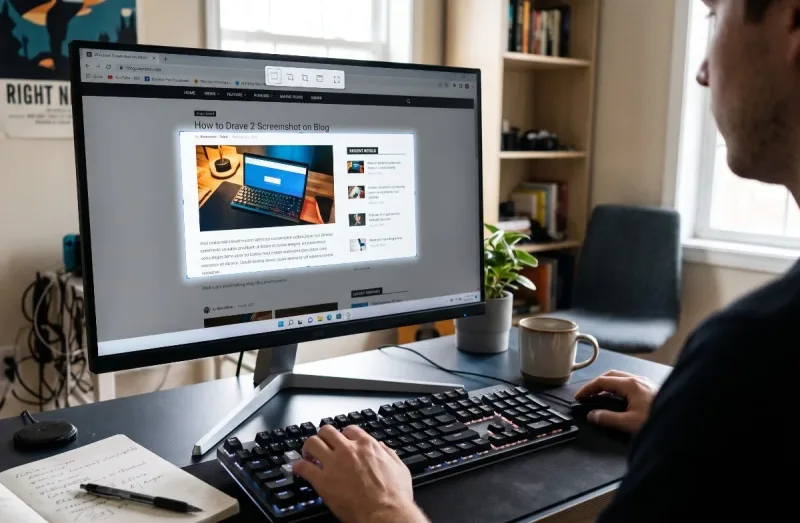
Whether you are saving an online receipt, grabbing a frame from a favorite video, troubleshooting a bizarre computer glitch, or documenting step-by-step instructions for a coworker, knowing how to take a screenshot on PC is one of the most practical everyday computing skills you can master.
Decades ago, capturing your monitor's display meant hitting a single clunky key and hoping your clipboard didn't wipe before you opened MS Paint. Modern desktop environments—spanning Windows 10, Windows 11, macOS, and Linux—offer rich, built-in toolkits that let you capture full screens, targeted windows, custom shapes, and even scrolling documents in seconds.
Here is the definitive guide to capturing your computer screen effortlessly across every major platform and hardware setup.
1. Fast Built-in Shortcuts for Windows 10 and Windows 11
Windows provides multiple native key combinations to capture screen contents without requiring third-party software. Depending on whether you want an instant file, a quick copy to paste, or an isolated window, select the method that best matches your workflow.
The Dedicated Snipping Tool / Snip & Sketch (Windows + Shift + S)
This shortcut is the standard method for precision screen capture on modern Windows PCs.
-
Press Windows Key + Shift + S simultaneously.
-
The screen dims slightly, and a small toolbar appears at the top of your display featuring four capture options:
-
Rectangular Snip: Drag a box across the precise section of the display you wish to capture.
-
Freeform Snip: Draw an irregular boundary around any shape or object.
-
Window Snip: Click any open application window to capture it cleanly without desktop background noise.
-
Fullscreen Snip: Captures every monitor connected to the system instantly.
-
-
Once selected, your snip saves directly to your clipboard.
-
A toast notification appears in the lower-right corner. Click it to open the image inside the Snipping Tool editor to crop, highlight, draw arrows, or annotate with text.
Instant Clipboard Capture (PrtScn or Print Screen)
-
Press the PrtScn (or Print Screen) key on your keyboard.
-
This captures your entire display (including multiple monitors if attached) directly to the system clipboard.
-
Open an application like Paint, Word, Slack, or an email draft and press Ctrl + V to paste the image.
-
Windows 11 Tip: Microsoft allows you to set the Print Screen button to open the Snipping Tool automatically. Navigate to Settings > Accessibility > Keyboard and toggle "Use the Print Screen button to open screen capture."
Instant Auto-Save (Windows Key + PrtScn)
When you want to capture multiple consecutive screens without stopping to manually paste or save each file:
-
Hold down the Windows Key and press PrtScn.
-
The screen will flash or dim briefly, confirming the capture.
-
Open File Explorer, navigate to your Pictures library, and select the Screenshots subfolder (
C:\Users\[Username]\Pictures\Screenshots). -
The system automatically generates sequentially numbered PNG files (
Screenshot (1).png,Screenshot (2).png).
Capturing Single Active Windows (Alt + PrtScn)
-
Click inside the window you wish to record to make it active.
-
Press Alt + PrtScn.
-
Windows captures strictly the active program window, ignoring background apps and taskbars, copying it directly to your clipboard.
2. Using the Windows Snipping Tool App Directly
For complex screen captures requiring delays or recurring edits, open the standalone Snipping Tool interface:
-
Press the Windows Key, type
Snipping Tool, and press Enter. -
Click New to start a capture.
-
Use the Delay dropdown (options include 3, 5, or 10 seconds). This allows you to open context menus, drop-down selections, or mouse-over tooltips that would otherwise vanish the moment a screen-capture shortcut is triggered.
-
Windows 11 updates have integrated Screen Recording into the same app—switch the camera icon to the video camera icon on the top ribbon to capture video clips of on-screen actions.
3. Dedicated Gaming Capture: The Xbox Game Bar
Gamers often encounter issues where full-screen DirectX or Vulkan games ignore standard desktop shortcuts like PrtScn. Windows solves this with the built-in Xbox Game Bar.
-
Press Windows Key + G to reveal the Game Bar overlay.
-
Locate the Capture widget in the upper-left area.
-
Click the Camera icon (or use the dedicated shortcut Windows Key + Alt + PrtScn).
-
Your captures are preserved in
C:\Users\[Username]\Videos\Captures.
4. How to Take Screenshots on macOS
If you switch between Windows and Mac environments, macOS features a parallel set of keyboard-driven commands:
-
Entire Screen (
Command + Shift + 3): Instantly captures the entire desktop and saves a file directly to your desktop. -
Targeted Selection (
Command + Shift + 4): Turns the cursor into crosshairs. Drag over the desired area. To capture a clean application window with a drop shadow, press the Spacebar after hitting the combination; the crosshair turns into a camera icon—click the desired window. -
Screenshot Utility HUD (
Command + Shift + 5): Opens an on-screen control bar offering options to capture still areas, record video files, set delays, and choose specific default save destinations.
5. Capturing Screens on Linux Desktops
Linux distributions running modern desktop environments (GNOME, KDE Plasma, XFCE) supply their own native shortcuts:
-
GNOME (Ubuntu, Fedora):
-
Press PrtScn to launch the interactive GNOME screenshot interface. Select selection, screen, or window, then choose whether to show the mouse pointer.
-
Captures are placed automatically in your
Pictures/Screenshotsfolder.
-
-
KDE Plasma (Spectacle):
-
Launch Spectacle via the PrtScn key or search bar. It allows delay timers, rectangular regions, active windows, and annotation tools before saving.
-
6. Popular Third-Party Screenshot Software
While native tools handle basic tasks, dedicated third-party utilities add power features such as automated cloud hosting, OCR (optical character recognition), scrolling window capture, and automated redaction.
| Application | Best For | Key Capabilities |
| ShareX | Power Users (Free & Open Source) | Scrolling captures, auto-upload to cloud storage, GIF creation, workflows. |
| Snagit | Technical Writers & Corporate | Robust documentation tools, step numbering, blur filters, team templates. |
| Lightshot | Fast Web Sharing | Lightweight, immediate web-link generation, fast inline markup. |
| Greenshot | Office Work | Lightweight, exports directly to Outlook, Word, Excel, or local files. |
7. How to Capture Full-Page Scrolling Screenshots
Standard screen capture tools only record what fits inside the physical borders of your monitor. When you need to capture a lengthy webpage, terms-of-service document, or long chat thread, use one of these solutions:
Method A: Built-in Microsoft Edge Web Capture
-
Open any page in Microsoft Edge.
-
Press Ctrl + Shift + S (or click the three dots in the top-right corner and select Web capture).
-
Select Capture full page.
-
Edge scrolls the website automatically, stitching the full height into a single image ready for marking up or saving.
Method B: Google Chrome Developer Tools (No Extensions Needed)
-
Open the target webpage in Chrome and press F12 (or
Ctrl + Shift + I) to display Developer Tools. -
Press Ctrl + Shift + P to open the DevTools command palette.
-
Type
screenshot. -
Select Capture full size screenshot from the results list. Chrome saves a high-resolution PNG of the entire rendered page directly to your Downloads folder.
8. Common Troubleshooting & Keyboard Variations
"My Laptop Doesn't Have a Print Screen Key"
Compact laptops (60%, 65%, or slim ultrabooks) often drop dedicated utility keys. Check for these solutions:
-
The Function Modifier: Look for a secondary label on keys like
Insert,Home, orF11. Press Fn + [Key with PrtScn label]. -
On-Screen Keyboard: Press Windows Key + Ctrl + O to display the virtual keyboard, which features a clickable
PrtScnkey. -
Rely on Snipping Tool: Use Windows Key + Shift + S, which never requires the actual
PrtScnbutton.
"Screenshots Come Out Blank, Black, or Gray"
If your capture software returns a solid black screen:
-
Hardware Acceleration: Certain protected content (Netflix, Disney+, banking dashboards) employs digital rights management (DRM) that disables screen capture at the graphics driver layer.
-
Overlay Software Conflicts: Certain game overlays or third-party screen-tinting software (like f.lux) can intercept display buffers. Update graphics drivers and verify desktop permissions.
Summary of Essential PC Shortcuts
Keep this reference table handy for quick recall during your day-to-day work:
-
Windows Key + Shift + S: Open precision capture toolbar (Snipping Tool).
-
PrtScn: Copy entire multi-monitor desktop to clipboard.
-
Windows Key + PrtScn: Save full screen directly as a PNG file in Pictures folder.
-
Alt + PrtScn: Copy strictly the active foreground window to clipboard.
-
Windows Key + G / Win + Alt + PrtScn: Capture full-screen games without crashing.
-
Ctrl + Shift + S (in Edge): Capture an entire scrolling webpage.




Comments
No comments yet. Be the first to ask a question or share an update.
Leave a comment
Your mobile number is never published. Comments appear after review. Website links, email addresses and code are not allowed.