
For nearly a decade, Google Chrome has operated as the unchallenged gatekeeper of the Android web experience. Shipped as the default engine on billions of mobile devices, Chrome captured market dominance not necessarily by being the most capable browser, but simply by being there. Most users accepted its aggressive advertising push, complete lack of mobile add-ons, and memory-hogging footprint because switching ecosystems felt like an unnecessary chore.
Enter Microsoft Edge. What started years ago as an awkward desktop replacement for Internet Explorer has evolved into one of the most feature-packed, nimble, and ambitious browsers available on modern smartphones. Under the hood, Edge leverages the Chromium rendering engine—meaning complete web compatibility—while layering on aggressive privacy controls, seamless Windows synchronization, integrated generative AI, and experimental extension support.
If you are wondering whether Microsoft’s mobile browser is worth setting as your primary default, this hands-on Microsoft Edge android apps review breaks down daily performance, AI integrations, ergonomics, privacy tools, and the real-world friction points you should expect.
The Core Foundations: Performance and Ergonomics
Underneath the Microsoft branding, Edge runs on Blink—the exact same underlying engine powering Chrome. This technical foundation eliminates the rendering quirks that occasionally plague alternative engines like Gecko. Websites load exactly as developers intended, complex web applications operate smoothly, and banking portals open without compatibility warnings.
Where Edge diverges fundamentally from Chrome is in its physical handling and interface ergonomics.
Thumb-Centric Navigation
Modern Android screens routinely measure 6.5 to 6.8 inches diagonally. Reaching up to the top bezel to tap an address bar or navigate back and forth creates real physical fatigue.
Edge addresses this by defaulting key navigation controls to an intuitive bottom ribbon. With one hand, your thumb can easily:
-
Open the tab switcher
-
Access browser favorites and history
-
Launch the built-in Copilot assistant
-
Trigger the main utility menu
You can also opt to place the address bar at the bottom, mimicking the modern ergonomics seen in iOS Safari and Firefox, making single-handed mobile research noticeably faster.
Copilot Integration: Gimmick or Genuine Productivity Boost?
Artificial intelligence features are being shoehorned into every corner of modern software, but Microsoft’s integration of Copilot directly into the Edge toolbar represents one of the few mobile implementations that genuinely enhances browsing.
Tapping the prominent Copilot button does not simply open an isolated chatbot; it summons a contextual assistant that can read and analyze the webpage actively open on your screen.
1. Instant Long-Form Summaries
Mobile reading is notoriously fragmented. When you are looking for specific facts inside a 3,000-word financial analysis, dense technical guide, or PDF document, Copilot can ingest the visible page and generate structured bullet points within seconds. Unlike standalone AI apps where you must copy and paste text manually, Edge feeds the active DOM directly into the assistant.
2. Multi-Tab Comparison
One of Copilot's most useful mobile updates is cross-tab awareness. If you have three separate product reviews or hotel options opened across multiple tabs, you can ask Copilot: "Compare the amenities and prices of the hotels opened in my active tabs." It processes the open sessions and produces an organized comparison matrix right inside your drawer.
3. Smart Vision and Voice
Edge incorporates voice dictation and visual query tools. You can highlight confusing paragraphs or uploaded screenshots and ask Copilot to explain them in plain language, turning your browser into a research tutor on the fly.
Extension Support: A Massive Edge Over Chrome
The single greatest frustration with Google Chrome on Android has always been Google’s refusal to support browser extensions. Power users have historically had to migrate to niche tools like Kiwi or Firefox just to get basic add-ons working.
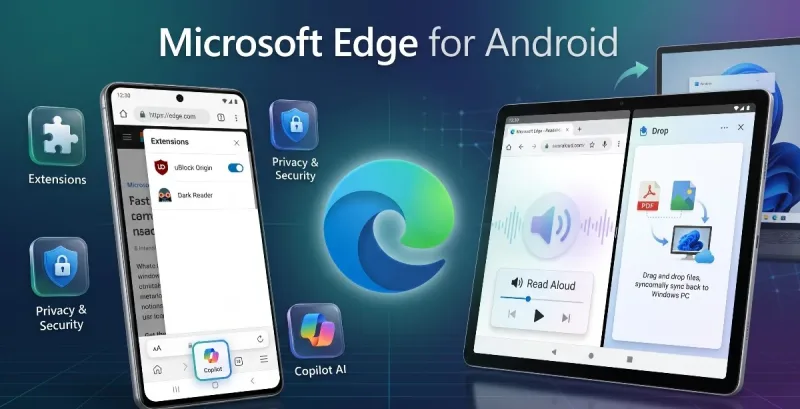
Microsoft has recognized this vulnerability. While extensions began as an experimental developer toggle, Edge on Android now offers a dedicated Extensions menu that brings popular desktop add-ons directly to your phone.
Standout Add-ons You Can Actually Run:
-
uBlock Origin: The gold standard of script and content blocking. It strips away pop-ups, telemetry scripts, and intrusive banners, drastically cutting down page weight and mobile data usage.
-
Dark Reader: Forces clean, readable high-contrast dark themes onto websites that stubbornly refuse to implement native night modes.
-
Global Speed: Gives you granular video playback control across any HTML5 video player on the web, letting you accelerate educational lectures or podcasts up to 4x.
-
Proton Pass & Keepa: Facilitates autofill across complex sites and tracks real-time price drops on e-commerce platforms.
Having native extension support within a Chromium-based browser gives Edge a level of functional utility that default mobile Chrome cannot touch.
Productivity Tools: Drop, Read Aloud, and Immersive Reader
Beyond raw web surfing, Microsoft packed Edge with utility tools aimed at bridging the gap between desktop workstations and mobile devices.
Edge Drop: Frictionless File Transfer
Sending images, notes, or links between a smartphone and a Windows PC usually involves emailing yourself, using third-party messaging apps like Telegram, or plugging in a physical cable.
Edge solves this with Drop. Acting as an encrypted, personal cloud clipboard built directly into the browser, Drop lets you drag-and-drop photos, PDFs, text snippets, and APKs into a persistent chat panel. The files immediately populate inside the sidebar of Edge on your Windows or Mac desktop with zero configuration required.
Natural Voice Read Aloud
While many mobile browsers include basic text-to-speech tools, they often sound robotic and mechanical. Edge incorporates Microsoft’s neural cloud voices into its Read Aloud engine.
The resulting cadence, pronunciation, and pacing sound remarkably human. If you spend your morning commute reading industry news, Edge effectively transforms any article or web post into an on-demand podcast that you can play through your car stereo or earbuds while your screen remains locked in your pocket.
Immersive Reader
Edge’s Immersive Reader does more than strip away advertisements; it provides comprehensive typography controls. You can adjust column widths, alter background hues (from warm sepia to cool slate), increase word spacing, and highlight specific parts of speech. It is particularly invaluable for users with dyslexia or those reading dense text under harsh sunlight.
Privacy, Security, and Tracking Prevention
Because Microsoft generates substantial commercial revenue from software licenses, cloud computing, and enterprise services rather than solely through behavioral ad tracking, Edge offers a significantly more robust native security posture than standard Chrome.
| Security Feature | Edge Android | Google Chrome Mobile |
| Native Tracking Prevention | Basic, Balanced, Strict Modes | Limited cookie toggles |
| Microsoft Defender SmartScreen | Built-in (Phishing & Malware) | Safe Browsing |
| Built-in AdBlock Plus Toggle | Native setting included | None |
| Dark Web Password Monitor | Included with sync | Included via Google account |
| InPrivate Search Isolation | Strips session trackers | Incognito only clears local history |
In Strict Mode, Edge aggressively blocks trackers before they execute, stops fingerprinting scripts from identifying your device canvas, and disables tracking cookies that follow you across disparate websites. Paired with the native AdBlock Plus toggle in the settings menu, you can achieve a remarkably clean browsing environment out of the box without needing to configure complex third-party DNS filters.
Windows Ecosystem Synergy: The Desktop Tether
If your primary computer runs Windows 10 or Windows 11, the practical benefits of running Edge on Android expand exponentially.
Through unified Microsoft Account synchronization, Edge creates an uninterrupted link across your hardware:
-
Instant Tab Sharing: Hitting "Send to Devices" pushes a mobile link directly to your workstation monitor, popping up instantly as a native Windows alert.
-
Unified Vault: Saved passwords, credit cards, address autofill data, and personal collections populate instantly across your phone and PC, secured behind your biometrics (fingerprint or face unlock).
-
Cross-Device History & Search: Pick up exactly where you left off researching a topic on your desktop the previous afternoon without manually digging through bookmarks.
For anyone already working within the Microsoft 365 or OneDrive environment, Edge on Android feels less like an isolated mobile app and more like a natural peripheral to your primary computer.
Where Microsoft Edge Stumbles: The Trade-Offs
Despite its comprehensive feature set, no thorough Microsoft Edge android apps review would be complete without addressing the rough edges. The browser is not without its annoyances:
-
Feature Clutter and Bloat: In its eagerness to differentiate itself, Microsoft tends to cram too many services into the interface. By default, the new tab page can feel overwhelmed with MSN clickbait news headlines, weather widgets, shopping vouchers, and Microsoft Rewards counters. Thankfully, you can turn off almost all of this clutter via the settings to achieve a clean, minimalist launch page, but it requires initial cleanup.
-
Aggressive Bing & Rewards Promotion: Microsoft relentlessly nudges users toward Bing search and Microsoft Rewards. If your default preference is Google or DuckDuckGo, Edge will respect your choice, but you will still encounter persistent banners highlighting the perks of switching search defaults.
-
Memory Footprint on Budget Hardware: Because of the background services required for Copilot and synchronized toolbars, Edge can consume slightly more active RAM than lightweight alternatives like Brave or DuckDuckGo Browser. On modern mid-range or flagship phones, this is entirely imperceptible; on entry-level Android devices with 3GB of RAM or less, you may experience occasional tab reloads.
How Edge Compares to the Competition
To understand its market position, see how Edge aligns with other leading Android alternatives:
-
vs. Google Chrome: Edge wins outright on functionality. It provides bottom toolbar controls, actual extension support, native ad blocking, and AI summarization that Chrome flatly lacks. Chrome only wins if you are strictly committed to Google Password Manager and Chromebook integration.
-
vs. Brave: Brave remains superior for users whose sole priority is zero telemetry and bulletproof out-of-the-box ad blocking. However, Brave lacks Edge's deep PC workflow synchronization, Drop file sharing, and natural-sounding Read Aloud tools.
-
vs. Firefox: Firefox is an open-source champion with full independent engine independence and expansive extension support. However, Edge consistently outpaces Firefox in rendering speed on heavily animated web applications and offers far tighter Windows desktop integration.
The Final Verdict
Completing an exhaustive Microsoft Edge android apps review makes one thing crystal clear: Microsoft Edge is no longer the underdog browser you only use to download another program. On Android, it has matured into one of the most capable, adaptable, and genuinely productive daily drivers on the market.
By marrying the performance and compatibility of Chromium with practical desktop extensions, natural text-to-speech audio, an unobtrusive bottom interface, and intuitive AI assistance via Copilot, Edge successfully outclasses Google Chrome in virtually every usability metric.
If you are willing to spend five minutes in the settings menu turning off the default MSN news feed and Bing promotional banners, you will be rewarded with a mobile browser that is fast, deeply versatile, and leagues ahead of the default tools installed on your phone.





Comments
No comments yet. Be the first to ask a question or share an update.
Leave a comment
Your mobile number is never published. Comments appear after review. Website links, email addresses and code are not allowed.