
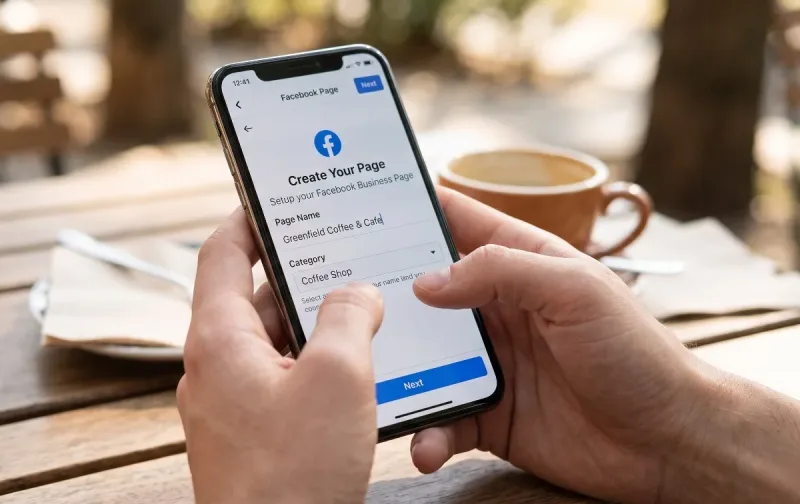
Every modern brand, side hustle, creator, and local business needs a digital home base. While building a custom website is an essential milestone, establishing an active social presence is often where customer conversations happen first. With billions of daily active users, Facebook remains one of the most effective platforms to build community, generate leads, and showcase products or services.
You do not need a desktop setup or complex technical tools to get started. You can launch, design, and configure a fully functional, professional presence directly from your smartphone.
Here is everything you need to know about how to create a Facebook page on mobile, optimize it for search visibility, and set it up for sustainable organic growth.
Why Setting Up on Mobile Makes Practical Sense
Building your presence on a mobile device is not just a convenient workaround; for many creators and entrepreneurs, it is the most practical workflow.
-
Instant Media Uploads: Photos, product shots, short-form reels, and team updates live directly on your phone camera roll. Mobile setup lets you crop, adjust, and upload branding assets without cloud transfers or email attachments.
-
Streamlined Mobile Interface: The Meta mobile app simplifies administrative tasks into direct, card-style prompts, cutting down dashboard clutter.
-
Immediate Push Engagement: Managing a business page on mobile ensures you can respond to customer inquiries, test notifications, and manage comments the moment they arrive. Speed to lead is critical for high conversion rates.
Pre-Setup Checklist: What You Need Before Starting
Before opening the app, gather your key assets. Having these ready will save time and ensure your page looks professional from the moment it goes live:
-
A Personal Facebook Profile: Meta requires an active personal account to serve as the administrative owner. Your personal identity remains private and is never shown publicly as the owner unless you deliberately share it.
-
Page Name: Select a clear, recognizable name. It should either be your official brand name or a descriptive combination (e.g., Brand Name | Service/Location).
-
Primary Category: Think about the 1 to 3 categories that best describe your operations (e.g., Digital Creator, Health & Beauty, Marketing Agency, Local Service).
-
Branding Assets:
-
Profile Picture: A square graphic or clean headshot, ideally formatted to 500 × 500 pixels (PNG format ensures sharp lines on text or logos).
-
Cover Photo: A widescreen banner, ideally around 820 × 312 pixels. Ensure critical text and design elements are centered so they do not get clipped on different screen sizes.
-
-
Contact and Essential Business Details: A working email address, website URL, phone/WhatsApp number, physical address (if applicable), and operating hours.
How to Create a Facebook Page on Mobile (Step-by-Step)
The following steps apply to both iOS and Android using the standard Facebook mobile application.
Step 1: Access the Pages Menu
Open the Facebook app on your phone and tap the Menu icon (represented by three horizontal lines or your profile avatar located at the bottom right on iOS or the top right on Android). Scroll down and tap Pages (represented by a flag icon).
Step 2: Initiate Page Creation
At the top of the Pages screen, tap the + Create button. A welcome screen will appear outlining the benefits of connecting with your audience. Tap Get Started.
Step 3: Name Your Page
Type your official page name into the field.
-
Keep it clean, accurate, and free of unnecessary punctuation or random all-caps.
-
Avoid generic buzzwords. Your page name should reflect your real-world brand, service, or personal creator identity.
Tap Next.
Step 4: Select Your Categories
Type keywords into the search bar to find categories that match your offerings. You can add up to three distinct categories.
-
Tip: Choose the most accurate category as your primary option. Facebook’s internal recommendation engine uses this tag to suggest your page to relevant local audiences and search queries.
Tap Create.
Step 5: Fill Out Initial Contact & Bio Details
Meta will present an initial setup screen where you can add basic details:
-
General Bio: A 1–2 sentence summary explaining who you are, what you offer, and who you serve.
-
Contact Information: Enter your website URL, contact email, and phone number.
-
Location: If you operate a brick-and-mortar storefront or localized service, input your street address, city, and ZIP/postal code. If you operate entirely online, leave these fields blank.
-
Hours: Select your operational schedule (No hours available, Always open, or Standard hours).
Tap Next.
Step 6: Customize Your Visual Branding
Upload your profile picture and cover photo directly from your mobile gallery.
-
Tap the camera icon inside the small circular area to select your Profile Picture.
-
Tap the camera icon on the widescreen area behind it to select your Cover Photo.
-
Frame both images carefully using the on-screen crop tool.
Tap Next.
Step 7: Configure Action Buttons (CTA)
Tap Customize Action Button (or Edit Action Button). This button appears directly below your cover photo and drives your primary call to action. Select the action most aligned with your current business goals:
-
Send Message: Ideal for service businesses that close deals inside Messenger.
-
Send WhatsApp Message: Excellent for fast conversational support and localized orders.
-
Call Now: Best for emergency services, clinics, and local contractors.
-
Visit Group / Learn More: Directs traffic straight to your website landing page or resource portal.
Follow the brief prompts to verify your destination link or phone number, then tap Save and Next.
Step 8: Finalize Notifications & Finish Setup
Toggle on Page notifications on your profile so you receive instant alerts whenever users comment or message. You can also opt-in or out of marketing and promotional emails from Meta. Tap Done.
Your mobile device will automatically switch profiles from your personal account to your newly created Facebook Page interface.
Essential Post-Launch Optimization
Creating the shell of your page is only the first phase. Complete the following configurations to build credibility and improve discoverability.
1. Claim a Custom Username (Vanity URL)
By default, Facebook assigns your page an unwieldy URL string packed with random numbers. A custom handle looks professional on marketing materials and makes your page easier to find in search.
To set your username on mobile:
-
Tap your Page avatar menu icon.
-
Go to Settings & Privacy > Settings > Page Setup (or access the Meta Accounts Center / Meta Business Suite app).
-
Tap Username and enter your desired handle (e.g.,
@yourbrandname). -
Save your changes once the green checkmark confirms availability.
Your new clean URL will be [facebook.com/yourbrandname](https://facebook.com/yourbrandname).
2. Connect Your WhatsApp Business Account
If your customer base relies on mobile messaging, link your WhatsApp Business number. Navigate to your Page settings, select Linked Accounts, choose WhatsApp, and enter your phone number. Facebook will send a quick verification code via SMS/WhatsApp. Once verified, you can display a direct WhatsApp button on your page and run click-to-chat promotions.
3. Write a Compelling, Keyword-Rich "About" Section
Do not leave your "About" tab sparse. Search engines index public Facebook pages, meaning strategic text placement directly influences your organic reach.
-
Mention your core focus, services, and target regions naturally.
-
If you run a local enterprise, explicitly state the cities or districts you serve.
-
Include direct links to high-priority resources, such as your portfolio, booking portal, or customer service desk.
Profile vs. Cover Photo Best Practices
Your graphics form the initial impression for new visitors. Poorly cropped or blurry banners undermine trust immediately.
| Asset Type | Optimal Mobile Dimensions | Recommended File Format | Design Focus |
| Profile Picture | 500 × 500 px | PNG | High-contrast logo, icon, or professional headshot. Keep critical elements centered to accommodate circular cropping. |
| Cover Photo | 820 × 312 px (Safe Zone: 640 × 312 px) | PNG or high-quality JPG | Clean branding banner. Keep text and focal points inside the middle safe zone to avoid edge clipping on desktop displays. |
Creating Your First High-Impact Content
Do not start inviting followers to an empty feed. Publish 2 to 3 foundational posts first so early visitors have immediate value to consume:
-
The Welcome / Origin Post: Introduce the mission behind your venture. Explain what followers can expect from your updates, whether that involves industry tips, product drops, behind-the-scenes developments, or educational tutorials.
-
The Flagship Resource or Product Showcase: Feature your main offering. Use sharp photos or a clean graphic accompanied by a breakdown of benefits, pricing context, or where to learn more.
-
An Informational Value Post: Share an actionable tip, solve a common customer problem, or answer a frequently asked question relevant to your niche.
Pin your most important post to the top of your feed. To pin a post on mobile, tap the three dots (...) on the top right corner of the published update and select Pin Post. This ensures high-converting announcements or introductory guides stay visible above daily updates.
Recommended Free Management Tools
Managing a page solely through the native Facebook app works for basic tasks, but two companion mobile apps can significantly improve your daily workflow:
-
Meta Business Suite (iOS & Android): The official mobile command center for creators and brands. It allows you to schedule posts and reels ahead of time, view cross-platform analytics for both Facebook and Instagram, and manage a unified inbox for comments and direct messages.
-
Canva Mobile: A straightforward design app packed with pre-sized Facebook cover templates, profile picture frames, and social post graphics. It simplifies brand asset creation if you do not have dedicated design software.
5 Practical Tips for Organic Engagement and Growth
Building audience momentum requires consistency and clear communication. Keep these strategies in mind as you scale:
-
Prioritize Native Video and Reels: Short-form vertical video currently receives the highest algorithmic distribution across the platform. Use your phone camera to record quick insights, process overviews, or product demonstrations, and post them directly as Facebook Reels.
-
Engage Within the First Hour: When followers leave comments on your updates, reply promptly. Early conversation signals to the platform that your post is driving active discussion, which expands its reach across followers' newsfeeds.
-
Avoid Aggressive Engagement Baiting: Explicitly asking people to "share this post" or "type YES in the comments" can trigger algorithmic reach penalties. Instead, ask thoughtful, open-ended questions that naturally invite detailed community feedback.
-
Maintain Consistent Visual Identity: Use uniform colors, readable typography, and recognizable branding across your cover graphics, link previews, and post assets. Visual consistency builds authority.
-
Monitor Your Page Health Meter: Meta provides an interactive "Page Health" score inside the mobile interface. Review the checklist periodically to ensure you haven't missed optional profile fields, contact points, or directory verifications.
Maintaining Momentum
Learning how to create a Facebook page on mobile takes less than ten minutes, but the real value comes from consistent maintenance. Focus on delivering relevant updates, keeping your contact channels responsive, and evaluating your mobile analytics monthly to identify what formats resonate best with your audience. With clear branding and a structured content routine, your page will serve as an effective engine for visibility and community growth.




Comments
No comments yet. Be the first to ask a question or share an update.
Leave a comment
Your mobile number is never published. Comments appear after review. Website links, email addresses and code are not allowed.