
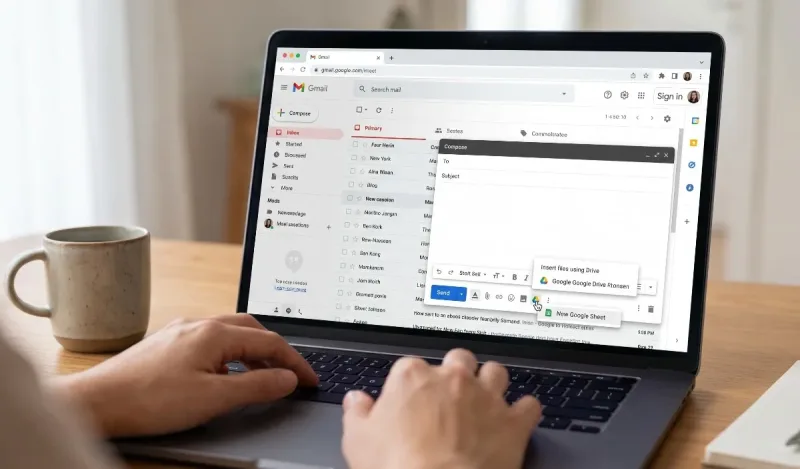
Have you ever found yourself in the middle of drafting an email, needing to pull together data, build a quick tracker, or collaborate on a spreadsheet without jumping through a dozen different browser tabs?
Google’s workspace tools are built to communicate with each other seamlessly, yet millions of users still juggle messy desktop spreadsheets, save CSVs to their downloads folder, and send outdated email attachments back and forth. If you want a clean, organized, and truly efficient workflow, learning how to create Google Sheets in Gmail is one of the best micro-skills you can master.
In this comprehensive guide, we will break down every single method to generate, attach, edit, and collaborate on a Google Sheet directly from your Gmail interface. Whether you are managing clients, organizing personal projects, or tracking team deliverables, this human-written walkthrough will make your email workflow feel effortless.
Why Connect Google Sheets and Gmail?
Before diving into the exact steps, it helps to understand why pairing these two tools directly is vastly superior to the old way of emailing spreadsheets.
-
A Single Source of Truth: When you attach a classic
.xlsxor.csvfile, the recipient downloads a static copy. If they edit it and email it back, you now have version conflicts ("Budget_Final_v2_FINAL.xlsx"). With Google Sheets, everyone views and edits the exact same live link. -
Access Control: You control who can view, comment, or edit. If you send sensitive numbers, you can revoke access or set permissions to "View only" with a single click.
-
No File Size Limitations: Traditional email systems reject heavy attachments over 25 MB. Because Google Sheets lives in Google Drive and syncs via the cloud, you never have to worry about hitting email attachment quotas.
-
Instant In-Email Previews: Gmail generates interactive smart chips and rich previews for Google Workspace files, keeping your emails looking professional and easy to navigate.
Also read: Arena of Valor Android Game Review
Method 1: Create a Google Sheet via the Google Apps Grid in Gmail (The Quickest Desktop Path)
The most direct and reliable way to open a fresh Google Sheet while looking at your inbox is using the Google Workspace App Launcher (commonly known as the "9 Dots" or "Waffle" menu).
Step-by-Step Instructions:
-
Open Gmail: Log into your inbox at mail.google.com.
-
Locate the 9-Dot Icon: Look at the top-right corner of your screen, right next to your profile picture or Google account initial.
-
Click the Google Apps Icon: A dropdown grid will appear displaying Google’s suite of web apps (Drive, Docs, Sheets, Calendar, Meet, etc.).
-
Select "Sheets": Click on the green Google Sheets icon.
-
Start a New Spreadsheet: Google Sheets will open in a new browser tab. Click the large + Blank card (or pick a pre-made template like an Expense Report or Project Tracker).
-
Title Your Sheet: Immediately click into the top-left field where it says Untitled spreadsheet and give it a clear, descriptive name.
Once your spreadsheet is ready, you can return to your Gmail tab and insert it into any email draft using the Google Drive button.
Method 2: Insert a New Sheet Directly Inside the Gmail Compose Window
If you are already typing an email and realize, "I need a fresh spreadsheet for this conversation," you don't even need to leave your compose window to get things started.
Step-by-Step Instructions:
-
Click the Compose button in Gmail to start drafting your email.
-
Look at the toolbar along the bottom of the compose box. You will see several icons: text formatting, paperclip (attachments), link, emoji, and the Google Drive icon (the triangular Drive logo).
-
Click the Insert files using Drive icon.
-
In the Drive overlay window that opens, you will see tabs: My Drive, Shared with me, Recent, and Upload.
-
While this window allows you to link existing files, you can quickly right-click or open a tab to Drive to spin up a new document, or insert an existing template sheet.
-
Before clicking Insert, make sure you select how to attach it at the bottom-right corner:
-
Drive Link (Recommended): Creates an interactive link or smart chip.
-
Attachment: Converts the sheet into an Excel file (not recommended if you want real-time collaboration).
-
Method 3: Using the Gmail Side Panel & Google Drive
On the right-hand edge of your Gmail inbox, Google provides a collapsible sidebar featuring companion apps like Google Calendar, Google Keep, Google Tasks, and Google Contacts. You can also integrate Drive or specialized Workspace add-ons right here.
-
Check Your Right Side Panel: Look at the narrow vertical rail on the far right of your Gmail screen.
-
Open Keep or Tasks to Plan: If you are sketching out column headers or data items before setting up your Sheet, jot them down in Google Keep without leaving the message.
-
Access Add-ons: Click the + (Get Add-ons) button at the bottom of that vertical panel. Here, you can install Google Workspace Marketplace add-ons that allow you to import email data directly into Google Sheets automatically.
Method 4: How to Create and Send a Google Sheet on Mobile (iOS & Android)
Creating and sharing spreadsheets from your phone follows a slightly different sequence because mobile operating systems isolate applications.
If You're on an Android Device or iPhone:
-
Open the Google Sheets App: If you haven’t already, install Google Sheets from Google Play or the Apple App Store.
-
Tap the Plus (+) Icon: In the bottom-right corner of the app, tap the colorful
+sign. -
Choose "New spreadsheet": Add your data, format your cells, and name the file.
-
Tap the Share Icon: Tap the person icon with the plus sign at the top of the screen.
-
Set Access: Change the access from Restricted to Anyone with the link can view/edit (or enter the recipient’s email address directly).
-
Share via Gmail:
-
Either tap Copy Link, open your Gmail mobile app, and paste it into your draft.
-
Or, directly inside the Sheets app, enter the recipient's email address and let Google send an automated notification email directly from your account.
-
How to Set Permissions Before Sending Your Google Sheet
One of the most common mistakes professionals make is emailing a Google Sheet link without granting access. The recipient clicks the link and is greeted with an annoying "You need access" screen.
To prevent friction, always configure your permissions:
| Permission Level | Best Used For | What the Recipient Can Do |
| Viewer | Invoices, Final Reports, Reference Data | Read-only. Cannot alter cells or formulas. |
| Commenter | Drafts, Proposals, Reviews | Can leave sticky-note style comments and suggest edits without changing cell values directly. |
| Editor | Team Trackers, Collaborative Projects | Full access to type, delete, change formulas, and format cells. |
How to configure:
-
Open your Google Sheet.
-
Click the blue Share button in the top-right corner.
-
Under General access, decide whether you want to restrict it to specific email addresses or select "Anyone with the link".
-
Choose their role (Viewer, Commenter, or Editor).
-
Click Done or Copy link.
Advanced Productivity: Automate Emails from Google Sheets (and Vice Versa)
If you find yourself repeatedly creating spreadsheets from email data, you can step up your productivity with simple automation tools:
1. Google Workspace Marketplace Add-ons
There are free add-ons (such as Export Emails to Sheets by cloudHQ) that automatically convert incoming emails, receipts, or leads from a specific Gmail label directly into a structured Google Sheet. This is ideal for tracking:
-
E-commerce order confirmations
-
Job applications and candidate resumes
-
Support tickets or customer inquiries
2. Google Apps Script
For power users, Google Apps Script allows you to connect Gmail and Sheets with custom code. You can write a tiny 10-line script that triggers an email whenever a row in your spreadsheet is updated, or grabs unread messages with a specific subject line and logs them into columns automatically.
Best Practices for Clean Collaboration
To keep your communication sharp and professional, keep these quick tips in mind:
-
Use Descriptive File Titles: Avoid names like
Sheet1orData. Use names that provide instant context:2026-Q4-Marketing-BudgetorClient-Onboarding-Tracker. -
Freeze Header Rows: Always go to
View > Freeze > 1 rowin your sheet so your recipient can scroll through large datasets without losing track of column headers. -
Protect Sensitive Ranges: If you want collaborators to edit only certain cells (like entering hours worked) while keeping formulas intact, use
Data > Protect sheets and ranges. -
Use Gmail Smart Chips: When pasting a Google Sheet URL into Gmail, press
SpaceorEnterso Gmail formats it as a tidy Workspace chip showing the file's title and icon, rather than an ugly, sprawling web address.
Summary Checklist
| Objective | Action |
| Fastest blank sheet | Click the 9-dot Apps icon in Gmail > Click Sheets > Click + Blank |
| Insert into current email | Click the Google Drive icon on the Gmail Compose toolbar |
| Ensure recipient can view | Click Share > Change to Anyone with link or add their email |
| Keep email looking clean | Use Drive Smart Chips rather than raw, unformatted hyperlinks |
Mastering the connection between Gmail and Google Sheets removes unnecessary friction from your day, eliminates version-control headaches, and ensures your team stays on the same page.





Comments
No comments yet. Be the first to ask a question or share an update.
Leave a comment
Your mobile number is never published. Comments appear after review. Website links, email addresses and code are not allowed.