
Running a large virtual presentation from a desktop workstation is familiar territory: multiple physical monitors, wired Ethernet, a dedicated microphone arm, and keyboard shortcuts right at your fingertips. But professional demands often happen away from a desk. Whether you are traveling between client hubs, managing an unexpected schedule conflict, or attending a mandatory company training from an airport lounge, the mobile experience becomes critical.
This breakdown offers an honest, in-depth GoToWebinar apple apps review across iPhone, iPad, and macOS, examining how well the platform translates its enterprise-grade broadcasting power to Apple's mobile ecosystem.
1. Navigating the App Store Transition
Before diving into feature sets, understanding what you are downloading from the Apple App Store is important. Over recent update cycles, parent company GoTo consolidated several standalone utilities—historically listed under separate monikers like GoToMeeting and GoToWebinar—into a unified application simply titled GoTo.
For Apple users, this consolidation solves a longstanding frustration: juggling three separate apps when a business switched between internal standups, client conferences, and public-facing webinars. The unified iOS and iPadOS app now handles meeting access, VoIP communications, and large-scale webinar broadcasts through one download.
| Feature / Metric | iPhone (iOS) | iPad (iPadOS) | Mac (macOS Client) |
| Primary Role | Mobile attendee, quick moderation | Mobile co-host, active viewer | Full host / production suite |
| Minimum OS | iOS 15.1+ | iPadOS 15.1+ | macOS 12+ (Optimized for Apple Silicon) |
| Screen Sharing | iOS Broadcast extension | Full iPad display streaming | Individual app windows or displays |
| Stage Manager Support | N/A | Yes (smooth resizing on M-series) | Native desktop multi-windowing |
| Multitasking / PiP | Picture-in-Picture supported | PiP, Split View, Slide Over | Full floating panels |
| Audio Handshake | CallKit, AirPods seamless switch | Bluetooth, Smart Connector docks | CoreAudio, multi-channel USB DACs |
2. First Impressions and User Interface
Launching the app on iOS or iPadOS reveals a clean, corporate-focused aesthetic. GoTo moved away from the cluttered utility menus of the past, favoring native Apple UI conventions like standard tab bars, readable San Francisco typography, and adaptive dark mode support.
Joining a session as an attendee is remarkably frictionless. Clicking a calendar invitation or webinar link automatically passes authentication parameters through Safari directly into the app, placing you into the waiting room without requiring manual login codes.
The interface maintains a calm visual hierarchy:
-
The Stage: Dominates the upper two-thirds of the screen on iPhone, keeping the presenter's video or slide deck clearly framed.
-
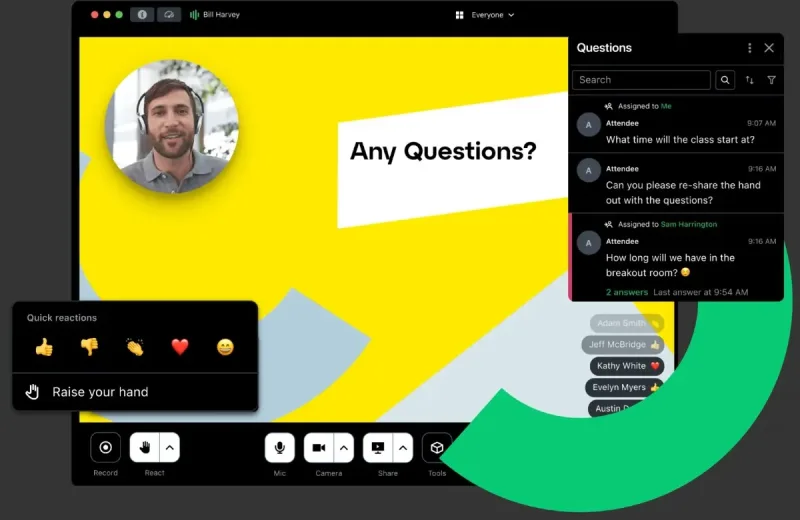
The Lower Ribbon: Houses mute toggles, hand-raising actions, and quick-access buttons for audience engagement panels.
-
The Interaction Drawer: Slides up smoothly from the bottom on iPhone or snaps into a tidy sidebar panel on iPadOS.
The setup feels immediately familiar, eliminating the learning curve common in legacy enterprise tooling.
3. The Attendee Experience: Mobility Done Right
The iOS client delivers its most polished performance from the perspective of an audience member. Participating in high-stakes presentations from a smartphone is often frustrating, but GoTo balances visual clarity with interactive participation effectively.
Audio Pipeline and Connectivity
Audio stability has long been GoTo's defining strength, and the Apple implementation reflects that heritage. The app taps natively into Apple’s CallKit framework. When connecting via VoIP over cellular or Wi-Fi, incoming phone calls will not abruptly terminate your session. Instead, the system treats the webinar audio as a managed call stream, pausing cleanly or displaying standard call-waiting prompts.
Pairing with AirPods works effortlessly. Spatial audio processing ensures voices come through crisp and centered, while beamforming microphones suppress ambient transit noise when you are unmuted to speak.
Live Engagement Tools
Mobile participants are rarely passive listeners; interactive webinars require real-time input. The iOS application handles standard engagement tools cleanly:
-
Interactive Polls: When a presenter launches a poll, an interactive modal card pops up over the presentation slides, allowing you to vote with a single tap before returning immediately to the video stream.
-
Structured Q&A: The questions panel separates personal submissions from published group answers, preventing the chaotic scrolling issues seen in standard text chats.
-
Handouts Drawer: Organizers frequently distribute PDF whitepapers or slide summaries. On iOS, tapping a handout downloads the document directly into Apple’s native Quick Look viewer, letting you browse offline or save the file straight to the Apple Files app or iCloud Drive.
Display Scalability and Pinch-to-Zoom
Reviewing dense spreadsheets or detailed architectural diagrams on an iPhone screen can be difficult. The app addresses this by implementing responsive pinch-to-zoom across shared screens. Rather than squinting at tiny labels, you can zoom into any portion of a slide without disrupting the presentation broadcast for anyone else.
4. iPadOS: Bridging the Tablet-Laptop Gap
While the iPhone version focuses on consumption, the iPadOS experience serves as a genuine productivity hub. Running GoTo on an iPad Air or iPad Pro with Apple Silicon delivers an experience remarkably close to a full desktop environment.
Split View and Slide Over
iPadOS power users rely heavily on multitasking. With Split View, you can position the GoTo webinar on the left half of the display while running Apple Notes, Notion, or Slack on the right.
If your iPad setup utilizes Stage Manager on an external monitor, the app resizes its presentation canvas dynamically without crashing the underlying video stream. Slide transitions render without tearing, and interactive tool palettes tuck away neatly into floating flyouts.
Picture-in-Picture (PiP)
Navigating away from the app to verify a data point in Safari or pull up an email thread will not drop you out of the session. The presentation or active speaker video automatically shrinks into a smooth floating Picture-in-Picture overlay. The mini-player can be moved around the corners of your iPad display or hidden offscreen with audio continuing uninterrupted in the background.
5. Hosting and Presenting from an Apple Device
Using an iPad or iPhone as an attendee is seamless, but how does the platform perform if you are the one running the broadcast? This is where the platform's practical boundaries become evident.
Presenter Privileges
Presenters can manage speaking duties, unmute audience members who raise their hands, advance uploaded slide decks, and monitor incoming text questions. If a scheduled co-presenter drops offline unexpectedly, you can promote a participant to panelist status directly from the iOS participant menu.
Mobile Screen Broadcasting
Sharing your screen from an iPad or iPhone uses Apple's native ReplayKit screen-recording engine. When initiated, your entire tablet screen mirrors to the webinar feed.
This works smoothly for presenting Keynote presentations or demonstrating iOS applications. However, presenters should exercise caution: screen broadcasting shares everything. Unless an aggressive Do Not Disturb or Focus Mode profile is active, incoming banner notifications, message previews, and private emails will appear directly on the webinar screen.
Missing Enterprise Tools
While quick presentations run fine on mobile, full production events still require macOS or Windows. Several advanced administrative tools remain unavailable on the iOS application:
-
Running complex live multi-panel breakout rooms with manual assignments.
-
Advanced on-the-fly registration screening and attendee payment collection.
-
Deep third-party CRM automation triggers (such as live Salesforce campaign mapping).
-
Granular multi-source audio leveling across diverse physical hardware inputs.
For complex broadcasts involving multi-camera feeds and live media switching, treat your iPad as a secondary monitoring tool or backup presenter interface rather than your primary control desk.
6. Real-World Performance: Speed, Battery, and Data
Enterprise software often struggles with resource optimization. To assess actual efficiency, we evaluated the GoTo iOS client across a series of live sessions on an iPhone 15 Pro running current software.
Battery Consumption
During a continuous 60-minute webinar over Wi-Fi with active 1080p screen sharing and audio:
-
iPhone Battery Drain: Approximately 11% to 14%, which compares favorably to rivals like Zoom or Microsoft Teams.
-
Thermal Profile: The device remained slightly warm around the processor area, but showed no signs of aggressive thermal throttling or severe screen dimming.
Cellular Data Consumption
On an uninterrupted 5G connection:
-
Audio-Only Stream: Consumes roughly 25 MB to 35 MB per hour.
-
Video + Presentation Stream: Averages 450 MB to 750 MB per hour, depending on how frequently the presenter switches complex slides or shows dynamic video clips.
If you are attending on a limited data plan, switching off incoming webcam feeds while preserving the shared slide deck reduces data throughput significantly without sacrificing access to the core visual presentation.
7. Comparative Analysis: Apple Ecosystem Strengths
| Evaluation Metric | GoTo (iOS / iPadOS) | Zoom Mobile | Microsoft Teams Mobile |
| Enterprise Audio Stability | Outstanding; resilient on weak mobile connections | Good, though audio drops on packet loss | Moderate; occasional sync lag |
| Webinar Link Handoff | Flawless; no mandatory account setup | Quick; occasional passcode prompt | Inconsistent; frequent tenant-switching bugs |
| Pinch-to-Zoom Precision | Very fluid with high vector retention | Functional, but occasionally blurry | Sluggish on complex graphics |
| Audience Q&A Management | Structured; clean moderation queues | Basic chat format in standard meetings | Unified chat feed; easy to lose context |
| In-App Handouts Access | Native iOS Files integration | Requires manual link downloads | Tied to SharePoint/OneDrive routing |
8. Areas Where the App Still Falls Short
Despite its reliability, the mobile client has room for improvement:
-
Host Control Asymmetry: Attempting to start, record, and moderate a multi-tiered webinar entirely from an iPhone remains awkward. Too many settings direct the user back to the web portal.
-
Apple Pencil Annotations: While you can present slides from an iPad, the markup tools lag behind dedicated whiteboard applications. Native Apple Pencil pressure sensitivity and palm rejection feel somewhat sluggish during live annotation.
-
In-Session Chat Segregation: The separation between private panelist communications and public attendee channels can cause occasional confusion on smaller iPhone screens, leading to accidental misdirected messages.
The Verdict on GoToWebinar for Apple Users
The GoToWebinar apple apps review comes down to your primary use case.
For attendees, remote managers, and traveling panelists, the mobile app is one of the most stable, reliable tools in the corporate communication space. It respects Apple's interface standards, manages system resources efficiently, and maintains rock-solid audio quality even when network connections drop to fringe cell signals.
Event producers running complex multi-track broadcasts will still want a Mac as their primary control station. But as a companion viewer, interactive participation terminal, or mobile presentation tool, the GoTo app for iOS and iPadOS provides a dependable bridge between the office desktop and working on the move.




Comments
No comments yet. Be the first to ask a question or share an update.
Leave a comment
Your mobile number is never published. Comments appear after review. Website links, email addresses and code are not allowed.